Tasks
Assign work, set due dates, link tasks to records, and track progress on a board.
Tasks is the shared to-do list for the workspace. Tasks can stand alone or be attached to a customer, a sales document, or a reminder.
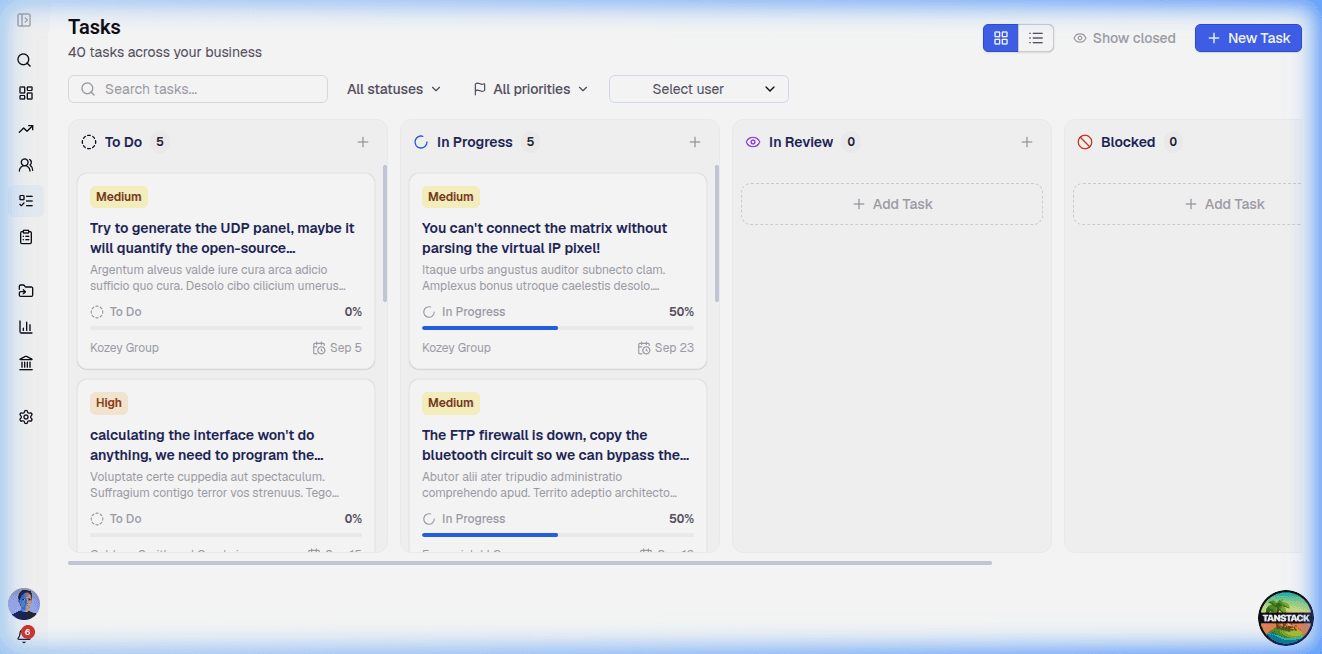
Creating a Task
Click New Task, or use the inline card at the top of a board column.
- Title — what needs doing.
- Description — the detail.
- Status — defaults to To Do.
- Priority — defaults to Medium.
- Assignee — who is doing it. Defaults to you if you leave it blank.
- Due date — when it is due. Overdue tasks are marked.
- Labels — free-form tags. Typing a label that does not exist creates it.
Tasks can be created from a board column inline, which is the fastest way to work through a column.
The Board
Seven columns, one per status:
| Column | |
|---|---|
| To Do | Not started |
| In Progress | Being worked on |
| In Review | Waiting on someone else |
| Blocked | Stuck |
| On Hold | Paused deliberately |
| Completed | Done |
| Cancelled | Dropped |
Progress is a percentage derived from the status, not a separate field you set — To Do is 0%, Blocked and On Hold 25%, In Progress 50%, In Review 75%, Completed 100%, and Cancelled 0%.
Move cards on the board
Drag a card to a different status column, or change its status from the card's menu. The change is visible to everyone in the workspace immediately.
The List View
The Board / List toggle at the top switches to a flat list. It is a denser view of the same tasks, and the toggle, your filters, and your page are all kept in the URL — so you can link someone to exactly the view you are looking at.
Show / Hide closed toggles whether Completed and Cancelled tasks are listed.
Filters
The filter bar gives you:
- Text search across titles and descriptions.
- Status — any of the seven.
- Priority — any of the five.
- Assignee — filter to one person.
- Removable chips for each filter, with a Reset to clear them all, and a live count of how many tasks match.
Priorities
Five levels: Low, Medium, High, Very High, and Urgent. The inline quick-create card offers Low, Medium, High, and Urgent.
Linking Tasks to Records
A task can be attached to a company, contact, invoice, or quotation. Once attached, the task carries that association and is visible from the record it belongs to.
Tasks also accept subtasks: a task with subtasks shows a count, and subtasks roll up into the parent's progress.
Comments and Files
Open a task to add comments and attach files from the Vault. Every comment is timestamped and attributed.
Your Tasks
Filtering by your own name is the quickest way to answer "what am I supposed to be doing this week". Combine it with Show closed off to get only live work.